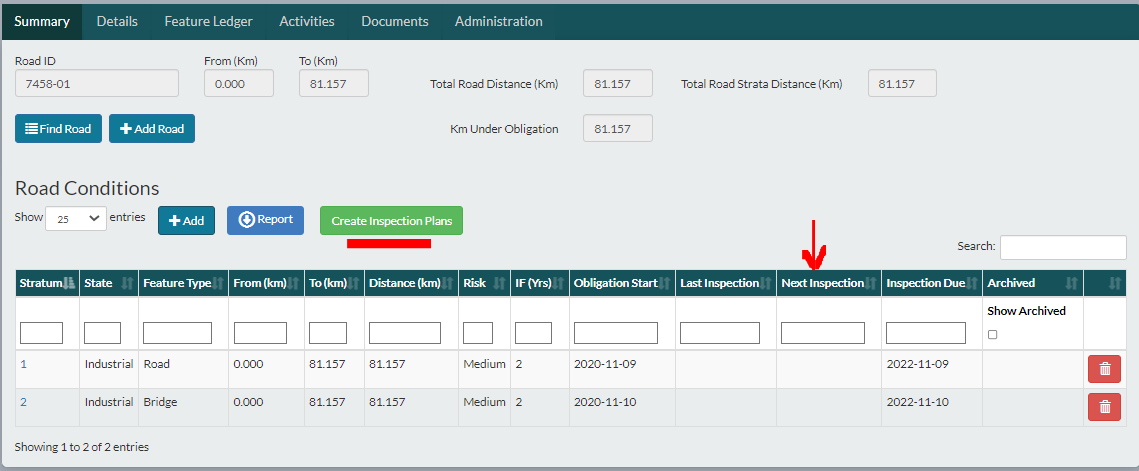
In the Road Conditions list grid, create strata that include road features with the same road state, risk, and inspection frequency. Through strata, uphold your obligation to maintain by ensuring that inspections are completed as planned.
By stratum, quickly capture:
- associated feature(s)
- state
- when the obligation started
- current risk and associated inspection frequency
- when the last inspection was completed
- when next inspection is planned
- when the next inspection is due
Once stratum records are created, they can be referenced and reused on Inspection Activities.
The Road Conditions list grid is located on the Road Summary page.
Add a new Road Stratum
- Click +Add
- Enter a unique Stratum (required)
- Select a Feature Type from the system generated pick list (required)
- Enter the From (Km) and To (Km) (required)
Note: The default is the Road From (Km) and To (Km) but they can be overwritten.
- Select the Current State and Risk from the system generated pick list
- Enter the Inspection Frequency (Yrs)
Note: Where a corresponding State, Risk and Feature Type exists in the Inspection Frequencies master list, the Inspection Frequency (Yrs) will auto populate but can be overwritten.
- Enter the Obligation Start Date
Note: To capture and track the stratum inspection due dates, the Obligation Start Date is required. By default, the Obligation Start Date will be the current date but can be overwritten.
- Click Submit
- Select the features applicable to the stratum (required)
- Click Submit
From (Km), To (Km), and Distance (Km)
Distance (Km) is read only and = To (Km) - From (Km). Where From (Km) and To (Km) in Road Feature Type strata overlap, they will be displayed in red on the Road Conditions list grid.
Features
Available selections are managed on the Feature Ledger. Other than Road Types, features available for selection will be those that exist between the From (Km) and To (Km) entered for the stratum. Other than Road Types, once a feature is selected in a stratum it will not be available for selection in other strata.
Create Inspection Plans Button
Once you have entered all Road/Feature strata for the Road. Use the Create Inspecion Plan(s) button to have the Next Inspection created automaticallly
- The 'Inspection Due' date will be used as the new Plan Inspection Target Date
- Feature Type will determine the Inspection Type created (Road or Culvert or Bridge Inspection)
- We will ONLY create a Planned Inspection if a Plan does not exist for the Stratum.
Edit a Road Stratum
- Click the blue Stratum hyperlink from the Road Conditions list grid
- Edit data
- Click Submit
Note: Where a corresponding State, Risk and Feature Type exists in the Inspection Frequencies master list, the Inspection Frequency (Yrs) will NOT auto populate when the stratum is edited.
Note: Once a stratum has been assigned to an inspection activity, users will NOT be able to edit the stratum From (Km) and To (Km) values or Features.
Delete a Road Stratum
- Click the Trashbin icon, for the stratum on the Road Conditions list grid.
- Click OK
Note: Once a stratum has been assigned to an inspection activity, users will NOT be able to delete a Stratum.
Archive a Road Stratum
When a road stratum has been added to an inspection activity, users will NOT be able to edit or delete the stratum. When a change to a road stratum is needed, archive the current stratum and create a new one with the desired changes.
When strata are archived, they will no longer be a selection option in inspection activities.
Note: All Stratum IDs including archived strata, must be unique.
- Click the blue Stratum hyperlink from the Road Conditions list grid
- Select the Archived check box
- Click Submit
Reporting
Use the Report button to output the standard attributes for this list grid to excel. For more information, see this article: Reporting.
To view and/or include archived Strata select the Show Archived check box at the top of the Archived column in the grid.
Tip: When adding/editing a stratum, hover over the ‘info’ button beside the Road ID to see the Road ID From, To, and Distance.